








How to format a hard disk
Formatting a hard disk is an essential operation to prepare a new storage medium, reinitialize an old disk or modify its file system. Done correctly, formatting improves data organization, system stability and sometimes overall computer performance.
This guide explains, in a clear and structured way, how to format a hard disk under Windows and macOS, which options to choose and what precautions to take to avoid unnecessary data loss.
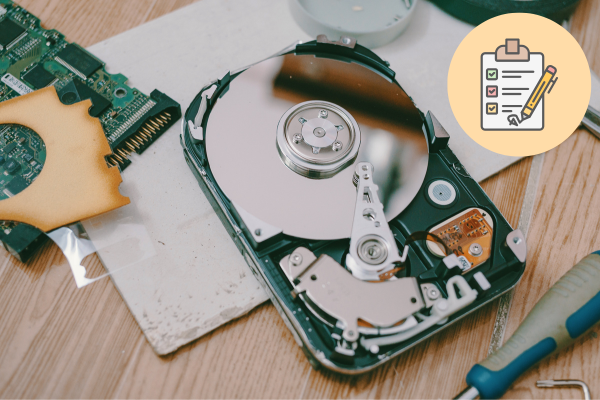
What is hard disk formatting?
Formatting a hard disk involves preparing the storage medium to receive data, by creating a logical structure (file system) that the operating system can understand.
In practical terms, formatting allows :
- Delete existing file organization on disk.
- Choose a suitable file system (NTFS, exFAT, APFS, etc.).
- Divide disk space into one or more partitions.
- Correct certain logical problems when the disk is unstable or corrupted.
Please note: formatting deletes all data on the partition in question. Before you start, it’s essential to back up everything you want to keep.
The right questions to ask before formatting
Before launching a formatting operation, take a few minutes to clarify your needs, such as recovering data from a hard disk. This will help you choose the best options.
- What type of disk will you be formatting? (internal disk, external disk, SSD, USB key)
- Which operating system do you use (Windows, macOS, or both)?
- What’s the main use for this drive? (file storage, system installation, backup, video editing, games, etc.)
- Have you backed up all the important data on this disk or partition?
- Do you require fast or complete formatting (we’ll explain the difference later)?
Choosing the right file system
The file system determines how data is organized on the disk and its compatibility with different operating systems. Here’s a summary of the most common formats.
| File system | Main compatibility | Recommended use |
| NTFS | Windows (read/write); macOS often read-only by default | Windows internal disks, system partitions, large files, advanced rights |
| exFAT | Windows and macOS (read/write), many recent devices | External disks used between multiple systems, large files (video, backups) |
| FAT32 | Extremely broad compatibility (PC, Mac, consoles, legacy devices) | Small USB sticks, disks for older devices; limited to files of up to 4 GB |
| APFS | macOS (especially recent versions) | Internal Mac disks, SSDs, volumes for macOS systems |
| HFS+ (Mac OS extended) | macOS and older Apple systems | Some Mac-dedicated external drives, compatibility with older Macs |
In a nutshell:
- For an internal Windows disk: NTFS is generally the best choice.
- For a disk used on both Windows and macOS: prefer exFAT.
- For recent Mac internal disks: APFS is recommended.
- For maximum compatibility with older devices: FAT32 remains useful, despite its limitations.
Quick or complete formatting: which to choose?
When it comes to formatting, many tools offer two options: quick format or full format.
- Fast formatting: deletes the file allocation table, making the disk appear empty, but does not rewrite all the data. It is much faster and sufficient for everyday use when the disk is healthy.
- Full format: rewrites the entire partition (or disk) surface and checks for bad sectors. It takes longer, but is preferable if you suspect hardware problems or require a more thorough reset.
For a recent disk in good condition, a quick format is generally sufficient. For an older, unstable disk, or one you intend to resell, a complete format is more prudent.
Essential first step: back up your data
Before any formatting operation, take the time to make a backup. Formatting deletes the file structure of the partition concerned, and recovery can be complex and sometimes impossible.
Save the date ideas:
- Copy important folders to another hard drive or USB stick.
- Use an external disk dedicated to backups.
- Export current projects (documents, photos, videos) to a separate location.
How to format a hard disk under Windows
Under Windows, there are several methods for formatting a hard disk or partition. The two most common are via File Explorer and Disk Management.
1. Formatting a disk via File Explorer
This method is fast and sufficient for most external disks, USB sticks or non-system partitions.
- Plug in the disk if it’s an external drive, then open File Explorer.
- In the left-hand pane, locate the disk to be formatted (drive letter, volume name).
- Right-click on the disk, then select Format….
- In the window that opens, select :
- File system (NTFS, exFAT, FAT32 depending on your needs).
- Allocation unit size (default, suitable in most cases).
- Volume name (disk label, e.g. “Data” or “Backup”).
- If you check or uncheck Fast formatting.
- Click on Start, then confirm when Windows warns you that the data will be deleted.
- Wait until the operation is complete, then click OK. The disc is now ready for use.
2. Format a disk via Disk Management
Disk Management offers greater control, especially when it comes to creating, deleting or resizing partitions.
- Open the disk management tool (e.g. by searching for Disk Management in your system menu).
- In the lower part of the window, locate the physical disk and partition(s) to be formatted.
- Right-click on the partition in question, then choose Format….
- Define :
- Volume name.
- The File System.
- Allocation unit size (default in most cases).
- The option to format quickly or not.
- Click OK to start formatting.
It is important not to format the system partition in use (usually the C: drive) from within Windows itself. To reinstall the system completely, you’ll generally need to use a dedicated installation medium.
How to format a hard disk under macOS
Under macOS, the reference tool for formatting a hard disk is the Disk Utility application. It lets you choose the partition scheme and file system (APFS, Mac OS Extended, exFAT, etc.).
Steps to format a disk with Disk Utility
- Open the Disk Utility application from the Applications folder, then Utilities.
- In the left-hand column, select the disk or volume to be formatted.
- Click on the Clear button.
- Inform :
- Volume name.
- Format (APFS, Mac OS extended, exFAT, etc.).
- Schema if necessary (e.g. GUID for a modern boot disk).
- Confirm by clicking on Delete. macOS then formats the disk or partition.
For an internal disk intended to host macOS, we recommend using APFS (for recent versions of the system) with a GUID partition scheme. For an external disk used between Mac and PC, exFAT is generally the most practical.
Formatting an external hard drive: special points
Formatting an external hard disk generally follows the same steps as for an internal drive, but the question of compatibility is more central, as these drives are often shared between several devices.
- Mixed use Windows / macOS: prefer exFAT to avoid the limitations of FAT32 and the write restrictions of NTFS on Mac.
- For use with game consoles or TVs: check the format required by the device (often FAT32 or exFAT).
- Backup disks: choose a file system that is fully compatible with your backup software or Time Machine.
You should also check the size of the files you’re handling. If you regularly work with large video files or disk images larger than 4 GB, avoid FAT32, which doesn’t support them.
Best practices after formatting
Once the disk has been formatted, a few quick checks ensure that everything works as expected.
- Open the disk in your Explorer or Finder and create a test folder.
- Copy a few files (small and large) to check speed and stability.
- Check the available capacity to confirm that the partition is the right size.
- Rename the volume if necessary to better identify its use (e.g. “Projects”, “Photo Backup”).
- Make a note of your chosen file system for future reference.
FAQ
Does formatting permanently delete data?
Formatting, especially rapid formatting, generally does not physically erase all data, but rather resets the logical structure of the disk. This may make recovery with specialized tools possible, at least in part, as long as the data has not been rewritten. On the other hand, complete formatting or several successive rewrites greatly reduce the chances of recovery.
Can I format the partition where my operating system is installed?
It is not possible to format the partition on which the system is installed. To reinstall Windows or macOS completely, use an installation medium (USB key, installation disk) which formats the system partition before installing the new environment.
What’s the main difference between NTFS, exFAT and FAT32?
NTFS is Windows’ default format for internal drives, with advanced rights, security and large-file management.exFAT is designed for modern removable media, compatible with Windows and macOS, and handles very large files.FAT32is highly compatible with many devices, but limited to 4 GB files and smaller volumes.
How long does formatting take?
How long this takes depends mainly on the size of the disk, the type of formatting (fast or complete) and the type of media (HDD or SSD). A quick format can take from a few seconds to a few minutes, while a complete format of a large mechanical disk can take much longer.
Do I need to format a new disk before using it?
Most new disks are already initialized and formatted in a generic file system (often exFAT for external disks). However, it’s a good idea to reformat the disk according to your specific use (NTFS for an internal Windows disk, APFS for an internal Mac disk, etc.) to optimize compatibility and performance.
Is it risky to format an SSD?
Formatting an SSD is not in itself dangerous, provided you use the tools provided by the operating system. SSDs handle data rewriting differently, but conventional formatting remains a common operation. On the other hand, it is generally inadvisable to multiply unnecessary low-level operations on an SSD, as each write consumes part of its theoretical endurance.
Can I cancel a formatting in progress?
We strongly advise against interrupting a formatting operation once it has started, as this may leave the disk in an inconsistent state and render the partition unusable without a new operation. If formatting is interrupted by accident (power cut, cable disconnected), it may be necessary to reformat the partition again to make it functional.
What’s the best strategy for avoiding unpleasant surprises?
First of all, clearly identify the disk or partition you are going to format and back up your important data. Then take the time to choose the file system best suited to your needs and check the options offered by the formatting tool. With these precautions, formatting becomes a simple, safe and very useful operation to get off to a good start.
31 December 2025